Docker for Developers: A Practical Guide from Dockerfile to Compose
A practical Docker for developers guide: write correct Dockerfiles, slim images with multi-stage builds, and orchestrate dev stacks with Docker Compose.
Panji Ihsanudin Fajri
13 min read1 reads
Contents
- Docker for developers: the problem it actually solves
- Containers vs virtual machines
- Dockerfile anatomy: the instructions you must know
- Writing your first Dockerfile: a Node.js app
- Multi-stage builds: slim images without build junk
- Docker Compose for everyday dev workflows
- The daily workflow: commands you will use every day
- Real-world example: API + database + cache stack
- Common beginner mistakes
- Docker best practices for development environments
- FAQ
- Is Docker only for deployment, or is it useful while coding?
- How much RAM do I need to run Docker?
- Does Docker work on Windows and macOS?
- What is the difference between docker compose and docker-compose?
- When should I not use Docker?
- Conclusion
If you have ever heard "but it works on my machine," you already know the problem Docker was built to solve. This docker for developers guide is a hands-on docker tutorial: not a wall of theory, but the Dockerfiles, images, containers, and Compose files you can drop into your daily projects. By the end, you will be able to write your own Dockerfile, run a multi-service stack with a single command, and sidestep the traps that catch most beginners.
Summary: Docker packages your app and its dependencies into one image that runs identically everywhere. You will learn how containers work, the anatomy of a Dockerfile, multi-stage builds for slim images, Docker Compose for everyday dev workflows, the essential commands, a real-world stack example (API + database + cache), common beginner mistakes, and proven best practices.
Docker for developers: the problem it actually solves
Docker is a platform that packages an application together with everything it needs — libraries, runtimes, configuration — into a standard unit called a container, which runs identically on a developer laptop, a staging server, and production. Containers share the host operating system's kernel, so they are lightweight and start in seconds, unlike virtual machines that must boot a full OS every time.
The problem Docker solves is painfully concrete. Without containers, every developer installs different versions of Node, Python, or databases on their laptop, and bugs appear on exactly one machine where nobody can reproduce them. With Docker, the development environment becomes a version-controlled file: anyone who runs the same command gets the same environment. That is why Docker shows up as a required skill in nearly every backend and DevOps job posting today.
Containers vs virtual machines
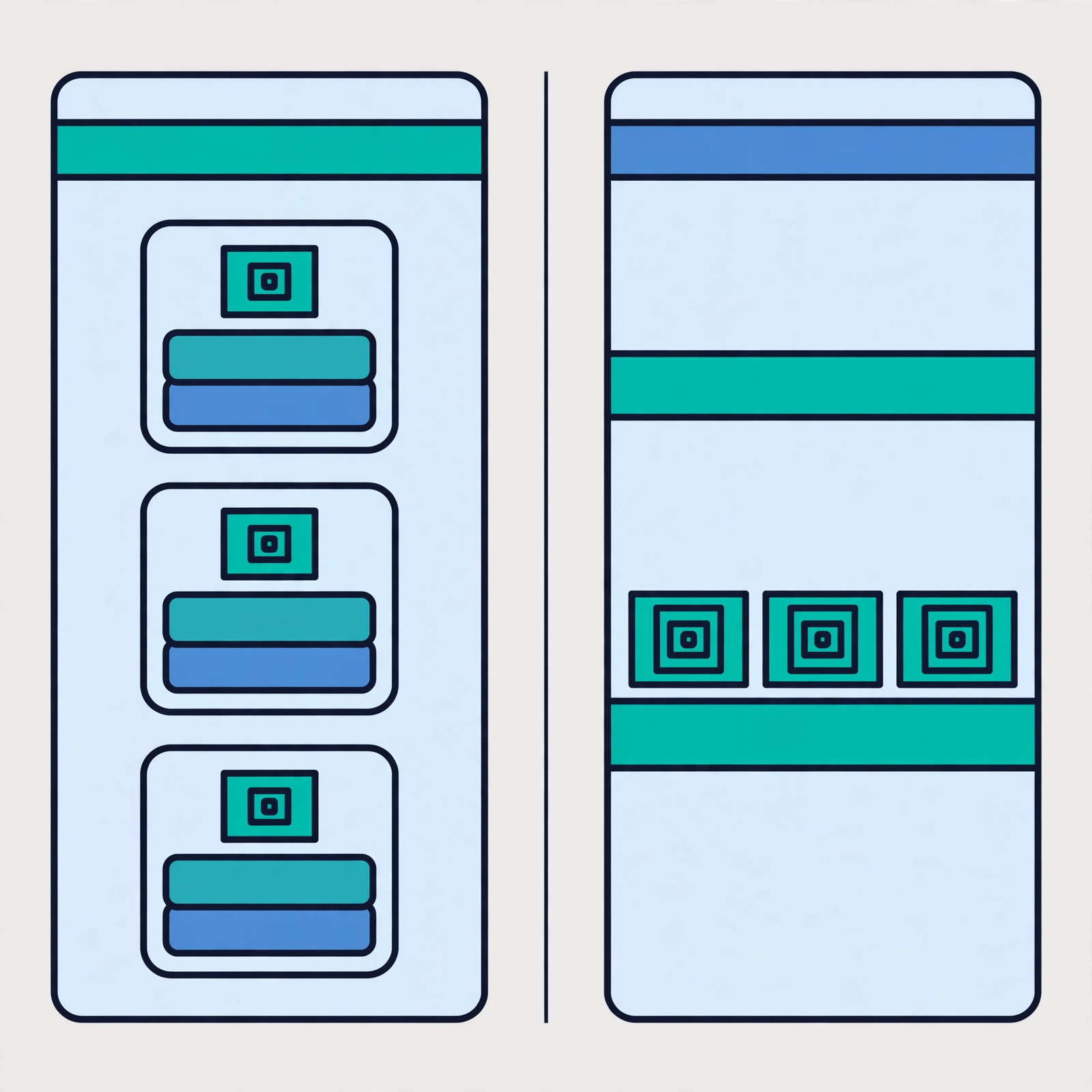
Developers often conflate containers with virtual machines (VMs). Both isolate applications, but the mechanism — and what it means for your daily workflow — is very different.
A VM virtualizes hardware: each VM carries its own kernel and OS on top of a hypervisor. A container virtualizes the operating system: all containers on one host share the same kernel, and isolation is handled by Linux kernel features like namespaces and cgroups. The result is containers measured in tens of megabytes that start in seconds, versus VMs measured in gigabytes that take tens of seconds to minutes to boot.
| Aspect | Containers | Virtual machines |
|---|---|---|
| Typical size | Tens–hundreds of MB | Several GB |
| Start time | Seconds | Tens of seconds–minutes |
| What it ships | App + dependencies | Full OS + app + dependencies |
| Isolation | Process isolation (namespaces, cgroups) | Full hardware isolation |
| Density per host | Dozens–hundreds | A few–a dozen |
| Main use | Running apps and services | Running a different OS per VM |
One caveat: containers do not replace VMs everywhere. If you need a different kernel (say, Linux on Windows without WSL) or hardware-level security isolation, a VM is still the answer. For everyday development — running an API, a database, and a cache locally — containers are almost always faster and cheaper on resources.
Dockerfile anatomy: the instructions you must know
A Dockerfile is a text recipe for building an image. Every instruction creates one layer, and layers are cached so subsequent builds only redo what changed. These are the instructions you will use constantly:
- FROM — the base image, e.g.
node:22-alpine. Always the first line. - WORKDIR — the working directory inside the image; everything after runs there.
- COPY — copies files from your machine into the image.
- RUN — executes a command at build time, e.g. installing dependencies.
- ENV — sets an environment variable.
- EXPOSE — documents which port the app uses (does not publish it automatically).
- CMD — the default command when the container starts; can be overridden.
- ENTRYPOINT — the command that always runs; arguments can be appended via
docker run. - ARG — a variable that exists only at build time, handy for versions or flags.
Instruction order directly affects build speed. Put rarely-changing instructions (dependency installation) as early as possible so their cached layers get reused, and copy frequently-changing source code last.
For the full reference of every instruction, see the official Dockerfile documentation.
Writing your first Dockerfile: a Node.js app
Enough theory. Here is a real Dockerfile for a Node.js app that compiles to a dist directory:
FROM node:22-alpine

WORKDIR /app

COPY package.json package-lock.json ./
RUN npm ci --omit=dev

COPY . .
RUN npm run build

EXPOSE 3000
CMD ["node", "dist/index.js"]
Notice the ordering: package.json is copied and dependencies installed before the source code. That means as long as dependencies do not change, Docker reuses the cached npm ci layer and the build only repeats the final steps. Using npm ci --omit=dev with a lockfile pins exact dependency versions on every build — a small detail that kills an entire class of "works on my machine" bugs.
Build and run it:
# Build the image with a tag
docker build -t myapp:1.0 .

# Run it as a container, mapping host port 3000 to container port 3000
docker run -d --name myapp -p 3000:3000 myapp:1.0

# Stream the logs live
docker logs -f myapp

# Open a shell inside the running container
docker exec -it myapp sh

# Stop and remove the container
docker stop myapp && docker rm myapp
The -d flag runs the container in the background, -p maps ports, and --name gives it an easy reference. logs -f and exec -it are the two debugging commands you will reach for every single day.
Multi-stage builds: slim images without build junk
The Dockerfile above still ships build tooling (the TypeScript compiler, devDependencies at build time) into the final image. A multi-stage build splits building and running into two stages, then copies only the final output across:
# Stage 1: build
FROM node:22-alpine AS builder
WORKDIR /app
COPY package.json package-lock.json ./
RUN npm ci
COPY . .
RUN npm run build

# Stage 2: slim runtime
FROM node:22-alpine
WORKDIR /app
COPY package.json package-lock.json ./
RUN npm ci --omit=dev
COPY --from=builder /app/dist ./dist
EXPOSE 3000
CMD ["node", "dist/index.js"]
The final image contains only the Node runtime, production dependencies, and the build output — no TypeScript sources, no compiler, no devDependencies. On real projects this technique routinely cuts image size by 50–80 percent, which means faster pulls in CI and shorter deploys. The full details are in the multi-stage build documentation.
Docker Compose for everyday dev workflows
Running one container with docker run is easy. The pain starts when your app needs a database and a cache: three docker run commands with a dozen flags each, the right startup order, and a network to create by hand. Docker Compose solves this with one declarative YAML file:
services:
  api:
    build: .
    ports:
      - "3000:3000"
    env_file:
      - .env
    depends_on:
      - db
      - cache
  db:
    image: postgres:16-alpine
    environment:
      POSTGRES_PASSWORD: ${DB_PASSWORD}
    volumes:
      - pgdata:/var/lib/postgresql/data
  cache:
    image: redis:7-alpine

volumes:
  pgdata:
With this file, docker compose up -d starts the API, Postgres, and Redis together on one private network. The api service builds from your local Dockerfile, while db and cache use official images from Docker Hub. The pgdata volume keeps Postgres data alive across container recreation. The complete syntax is covered in the Compose file specification.
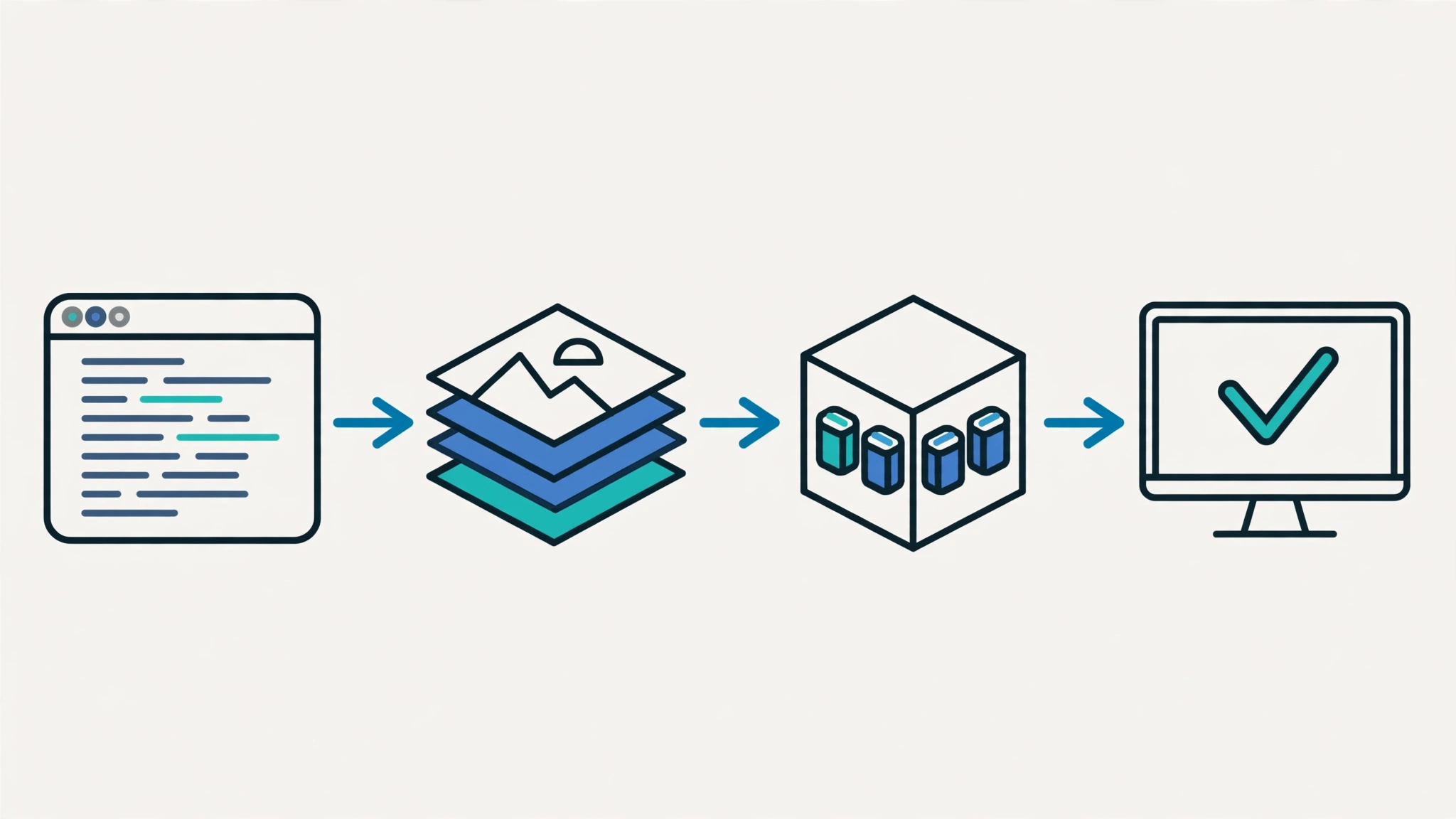
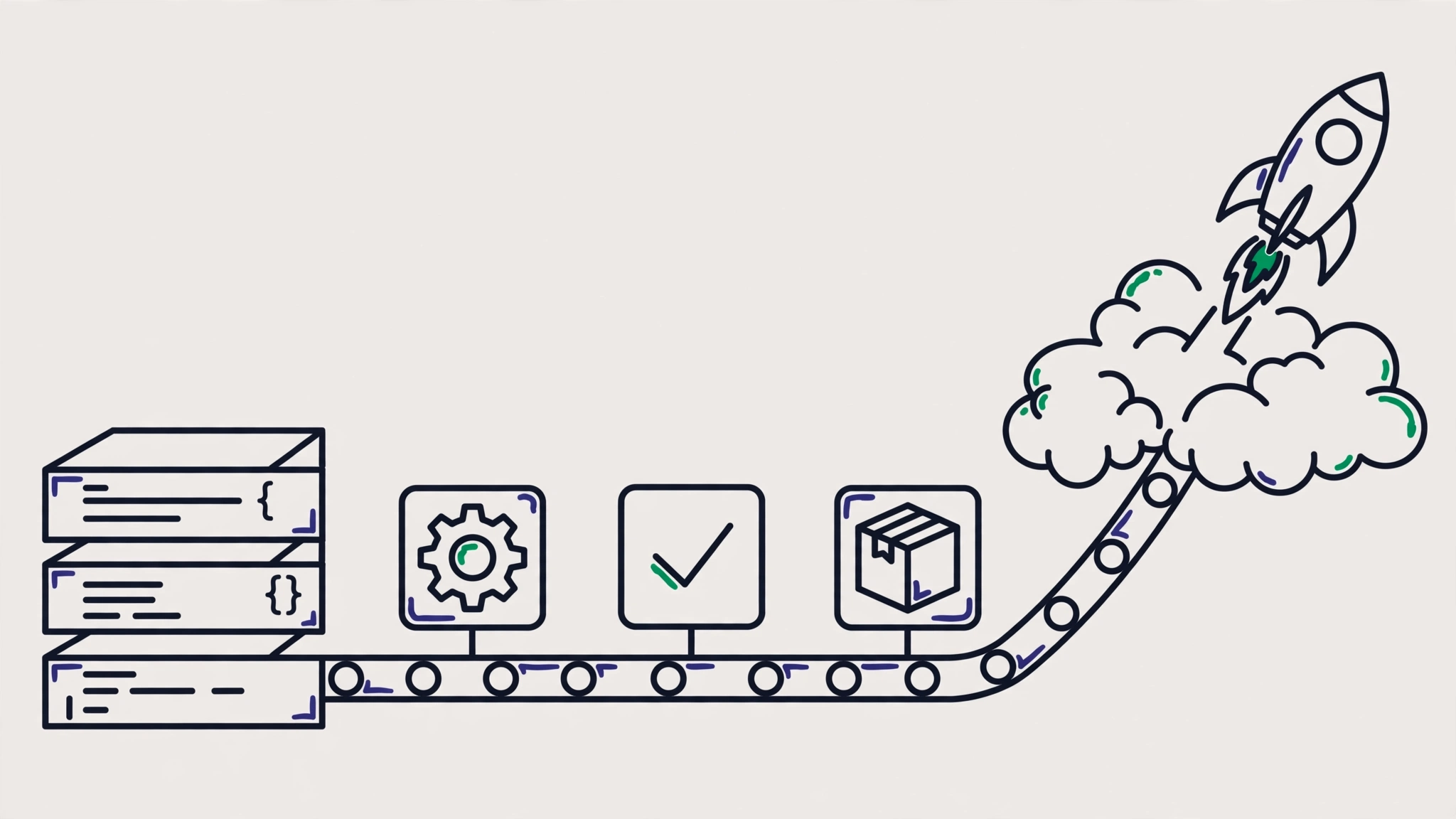
The flow is always the same: source code gets built into an image, the image runs as a container, and Compose orchestrates many containers at once. Once this pattern clicks, adding a new service — a message broker, a search engine — is a dozen lines of YAML.
The daily workflow: commands you will use every day
After the initial setup, 90 percent of your Docker interaction is this handful of commands:
# Start everything (rebuild if the Dockerfile changed)
docker compose up -d --build

# Check the status of all services
docker compose ps

# Stream one service's logs live
docker compose logs -f api

# Restart one service after changing code
docker compose restart api

# Open a shell in the db service
docker compose exec db psql -U postgres

# Shut everything down; add -v to also remove data volumes
docker compose down
Three habits separate developers who are comfortable with Docker from those who fight it: always read the logs before guessing (logs -f), give services clear names in the compose file, and run docker compose down at the end of the workday so no orphaned container eats your RAM. Writing precise commands and reading output carefully is the same skill as writing precise prompts for AI — both are about stating intent explicitly to a system that takes you literally.
When a container misbehaves, this diagnosis order saves time: docker compose ps for status, docker compose logs <service> for the error message, then docker compose exec <service> sh for direct inspection. Nine out of ten development issues — port conflicts, unset environment variables, volumes mounting the wrong directory — show up clearly in those three commands.
Real-world example: API + database + cache stack
Let us put it all together in a realistic scenario: you are building a Node.js REST API backed by Postgres and Redis. The project layout is simple — a Dockerfile and compose.yaml at the root, code in src/, and a .env file holding DB_PASSWORD.
First, write the multi-stage Dockerfile from the earlier example. Second, write the compose.yaml with three services. Third, one command:
docker compose up -d --build
docker compose ps
The ps output shows three healthy containers. The API answers on localhost:3000, Postgres on localhost:5432, Redis on localhost:6379 — each isolated, yet connected through Compose's internal network. You can restart the API without touching the database, tear down and rebuild the API without losing data (thanks to the pgdata volume), and a teammate gets an identical environment by running the same command.
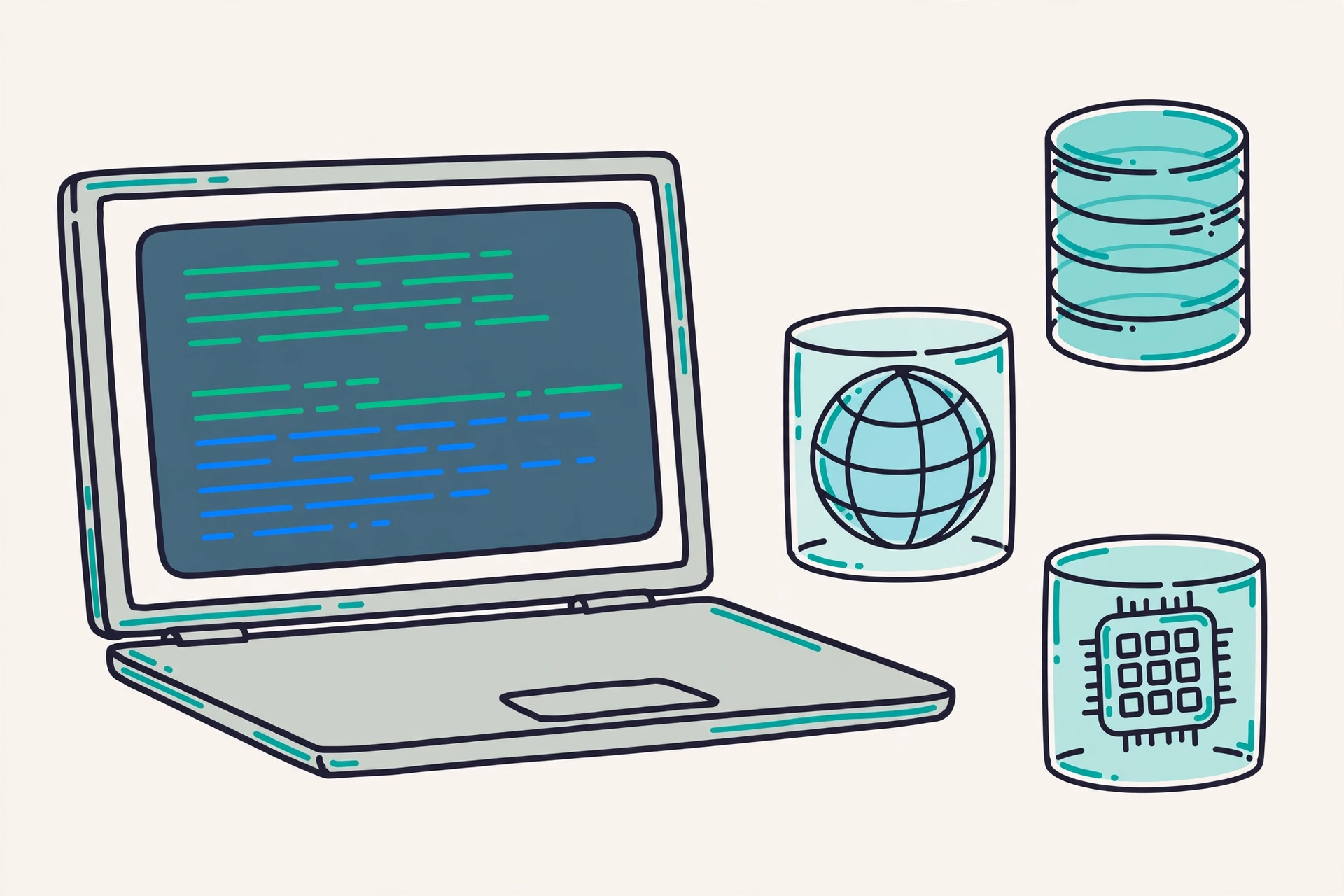
This is Docker's biggest win for developers: the development environment becomes code. Onboarding a new teammate changes from "follow these 20 wiki steps" to "clone the repo, run docker compose up." It sounds trivial until you have lived it on a team where everyone runs a different OS.
Common beginner mistakes
- Copying the entire build context, including
node_modules. Without a.dockerignorefile,COPY . .drags a giant folder into the build and wrecks layer caching. Always create a.dockerignorewith at leastnode_modules,.git, and your.envfiles. - Running containers as root for no reason. Official images ship a non-root user; add
USER node(for Node images) so the app does not run with full privileges. - Baking secrets into the image. A password or API key added via
COPYorENVin the Dockerfile is embedded in the image layers forever. Useenv_fileor a secrets manager — never hardcode. - Running many processes in one container. The "API + cron + worker in one container" pattern breaks the one-service-per-container model and makes logs unreadable. Split them into separate Compose services.
- Not tagging image versions.
docker build -t myapp .defaults to the ambiguouslatesttag. Use explicit tags (myapp:1.2.0) so rollbacks and debugging stay sane. - Skipping healthchecks. Without one,
depends_ononly waits for the container to start, not for the service to be ready. Add ahealthcheckto the database so the API does not crash while Postgres is still warming up.
Docker best practices for development environments
- Use small, specific base images.
node:22-alpineis lighter thannode:22, and an explicit version tag avoids surprises whenlatestmoves. - Exploit layer caching deliberately. Order your Dockerfile from least-frequently-changed to most-frequently-changed. Every cacheable line is seconds saved on every build.
- Separate dev and production configuration. Use
compose.yamlfor the base,compose.override.yamlfor dev (source mounts, debug ports), and a separate file for production. Compose merges them automatically. - Mount source code as a volume during development. Code changes show up instantly without a rebuild — saving dozens of builds per day.
- Clean up resources regularly.
docker system pruneremoves unused images, containers, and networks. Run it every few weeks so your disk does not fill up silently. - Document commands in the README or a Makefile. One
make devwrappingdocker compose up -d --buildbeats expecting everyone to memorize flags. - Read the official Dockerfile best practices as a checklist before any image goes to production.
FAQ
Is Docker only for deployment, or is it useful while coding?
It is extremely useful while coding — arguably where Docker shines brightest: running databases, caches, and supporting services without installing anything on your laptop. You keep writing code in your favorite editor while infrastructure dependencies live in containers you can start and stop in seconds.
How much RAM do I need to run Docker?
For a typical dev stack (one API + one database + one cache), 4–8 GB of total system RAM is usually enough. Containers themselves are light; what consumes memory is your applications — Postgres in a container uses the same RAM as native Postgres. Cap per-service memory in Compose if your laptop is tight.
Does Docker work on Windows and macOS?
Yes, via Docker Desktop. On Windows, Docker uses WSL 2 as its backend; on macOS it runs inside a lightweight, automatically managed Linux VM. The docker and docker compose commands you learned in this guide work identically on all three operating systems — one of Docker's core promises.
What is the difference between docker compose and docker-compose?
docker compose (no hyphen) is the modern plugin integrated into the Docker CLI, while docker-compose (with hyphen) is the legacy Python binary that is no longer developed. Always use docker compose — the YAML file syntax is compatible, so there is no reason to use the old one.
When should I not use Docker?
Skip Docker when your app needs tricky direct hardware access (GPU computing with special drivers, though this keeps improving), when one layer of abstraction is not worth it for a throwaway script, or when your team is not ready to maintain Dockerfiles. Docker is a tool, not an obligation — use it where it removes pain, not where it adds it.
Conclusion
Docker for developers comes down to one discipline: treat your environment as code. Write Dockerfiles that exploit layer caching, slim images down with multi-stage builds, orchestrate services with Compose, and drill the handful of daily commands until they are reflex. After that, "works on my machine" stops being a problem — because every machine runs the same thing.
The most sensible next step: take one of your own projects, write a Dockerfile and compose.yaml for it, and bring the whole stack up with a single command. If you want a smarter development workflow with AI assistance, also read our complete guide to prompt engineering — a consistent environment plus precise instructions makes iteration dramatically faster.